
ChatGPT Image Shortcuts: 99 Creative Styles for AI Images
Explore creative image styles for anime, retro photography, watercolor, cinematic scenes, 3D artwork, portraits, fantasy worlds and more.
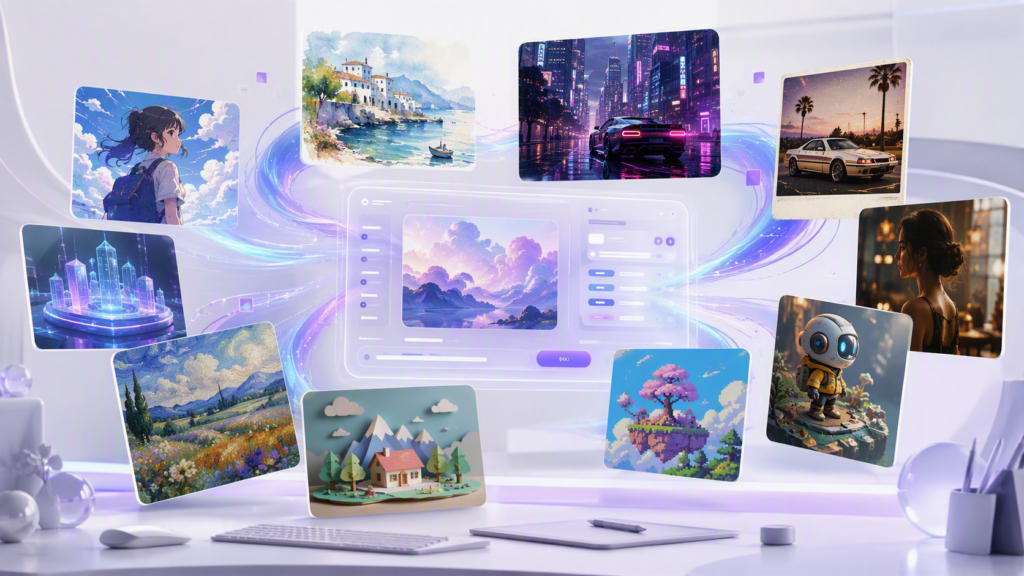
ChatGPT image shortcuts provide a simple way to explore different visual directions when creating or editing AI-generated images. Instead of describing an artistic style from scratch every time, you can use a shortcut as a creative starting point and then add your subject, composition, lighting, colors and other details.
This guide brings together 99 ChatGPT image shortcuts covering retro photography, anime, comics, painting, crafts, 3D artwork, cinematic scenes, portraits, sculptures, materials and photographic effects.
Use the examples below as inspiration for creating your own AI image prompts. You can also combine compatible styles to develop a more specific visual direction.
What Are ChatGPT Image Shortcuts?
ChatGPT image shortcuts are short creative style directions that can help you experiment with different approaches to AI-generated images. A shortcut can represent an artistic technique, photography effect, material, historical era, illustration style or cinematic aesthetic.
For example, a prompt beginning with /watercolor can be expanded with a subject, setting and lighting description. Similarly, a shortcut such as /cyberpunk can be combined with a futuristic city, neon lighting, rain and cinematic composition.
How to Use ChatGPT Image Shortcuts
The easiest approach is to combine a style direction with a clear description of what you want to create.
Use This Prompt Formula
Example Prompt
You can replace the style with any shortcut from the library below and customize the remaining description for your project.
99 ChatGPT Image Shortcuts
Browse the complete shortcut library below. Use the search box to find a particular style or select a category to explore related visual effects.
How to Create Better AI Image Prompts
A good image prompt gives the image generator enough information to understand the intended subject and visual direction. A style shortcut is useful as a starting point, but additional context can make your prompt much more specific.
1. Describe the Subject
Start with the main subject. It could be a person, building, landscape, product, vehicle, animal or fictional environment.
2. Add the Environment
Explain where the subject is located. For example, you might choose a futuristic city, mountain village, studio, forest, beach or historical setting.
3. Describe Lighting
Lighting can significantly change the appearance of an image. Consider terms such as soft daylight, dramatic shadows, neon lighting, golden hour or studio lighting.
4. Specify Composition
You can describe whether you want a close-up portrait, wide landscape, overhead view, centered composition, symmetrical design or another camera perspective.
5. Add Important Details
Finish your prompt with relevant colors, textures, mood, atmosphere and other details that are important to your idea.
Useful AI and Image Resources
If you want to learn more about AI image creation and search optimization, these resources provide additional information.
Frequently Asked Questions
What are ChatGPT image shortcuts?
ChatGPT image shortcuts are concise style directions that can be used as inspiration when creating AI image prompts. They can represent artistic styles, eras, materials, photographic effects or visual genres.
How do I use ChatGPT image shortcuts?
Start with a shortcut and then describe the subject, environment, lighting, composition, colors and other details you want in the image.
Can I combine multiple image shortcuts?
Yes. You can experiment with compatible styles. For example, a retro photography direction can be combined with a VHS effect, or an anime direction can be combined with cinematic lighting.
Which shortcuts are useful for portraits?
Portrait-related options include /headshot, /oilportrait, /fashioncover, /studioportrait, /beautyshot, /silhouette and /royalportrait.
Can these shortcuts be used as complete prompts?
A shortcut is better treated as a starting point rather than a complete description. Add the subject, environment, composition and visual details to create a more specific prompt.
Ready to Explore AI Image Styles?
Pick a shortcut, customize the example prompt and experiment with your own creative ideas.
Explore All 99 Shortcuts →