
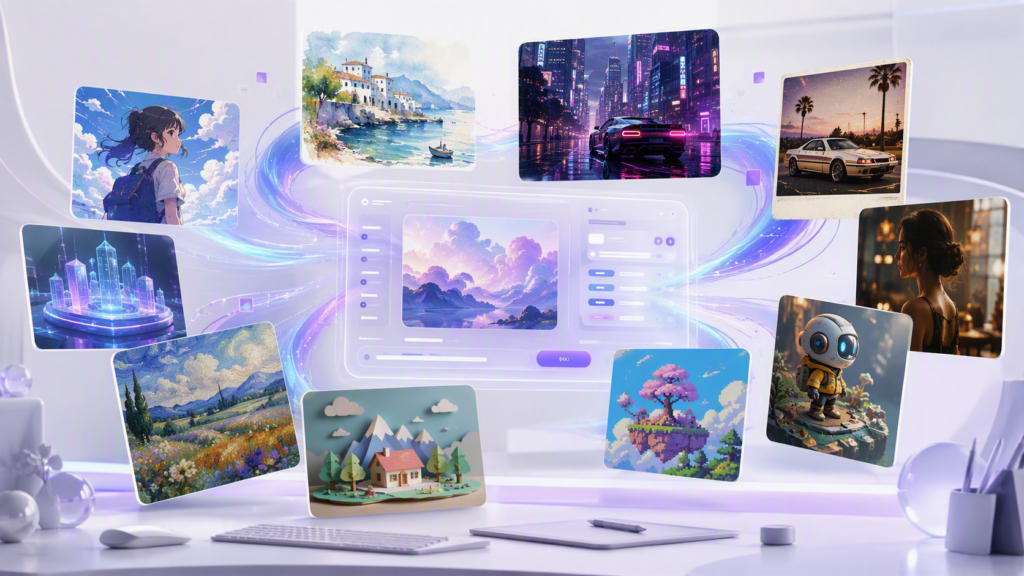
Insane Google Flow Video Commands: The Ultimate Prompt Guide
Google Flow video commands can help turn a simple idea into a structured visual concept for advertisements, social media clips, UGC-style content, cinematic scenes, storytelling, and experimental AI videos.
This guide brings together practical command-style prompts that you can adapt for product advertising, viral content, storytelling, creator-style videos, cinematic effects, fashion, lifestyle, and high-impact creative work.
- Social Media Advertisement Styles
- Product Advertisement Commands
- Viral Content & Attention Hooks
- UGC & Creator-Style Videos
- Fashion, Lifestyle & Luxury
- AI Video & Visual Generation Effects
- Storytelling & Narrative
- Conversion & High-Impact Creative
- How to Use Google Flow Video Commands
- Google Flow Prompt Formula
- FAQ
- SEO Checklist
1. Social Media Advertisement Styles
These Google Flow video commands are designed around short-form advertising and social media content.
| Command | What It Does |
|---|---|
| Reel | Create a fast-paced Instagram Reel advertisement. |
| Shorts | Optimize the video for YouTube Shorts. |
| TikTok-style | Craft an engaging vertical social video. |
| Conversational | Create a conversational social media advertisement. |
| Interactive | Make the advertisement feel organic. |
| Storytelling | Introduce a story-driven advertisement. |
| Problem/solution | Emphasize the customer's pain point visually. |
| Follow-worthy | Dramatically introduce the product. |
| Social-proof | Visually communicate trust and popularity. |
| Commentary | Combine storytelling with customer proof. |
| Full-funnel | Create a dramatic offer introduction. |
Example Prompt
2. Product Advertisement Commands
Use these commands when your goal is to make the product the visual hero of your advertisement.
| Command | Description |
|---|---|
| Cinematic | Create a complete visual advertisement concept. |
| Product-focus | Make the product the centerpiece. |
| Dramatic | Introduce the product dramatically. |
| Premium | Create a flawless premium product shot. |
| Detail-focused | Emphasize important product details. |
| Texture-rich | Highlight subtle materials and textures. |
| Feature-focused | Visually demonstrate a key feature. |
| Benefit-focused | Show the benefit of using it. |
| Story-driven | Tell a story around the product. |
| Commercial | Create a high-budget commercial aesthetic. |
| Launch | Create a cinematic product launch video. |
3. Viral Content & Attention Hooks
These prompts are designed around strong openings, curiosity, transformations, and visual patterns that encourage viewers to continue watching.
| Command | Description |
|---|---|
| Scroll-stopper | Create a visual that instantly stops the scroll. |
| Eye-catching | Create a reveal-worthy opening. |
| Fast-paced | Make the first second visually irresistible. |
| Unexpected | Introduce unexpected visual elements. |
| Curiosity-driven | Create curiosity that makes viewers keep watching. |
| Shock-value | Start with a surprising visual move. |
| Problem-hook | Visually present a relatable problem. |
| Result-first | Show the final result before the process. |
| Transformation | Open with a dramatic transformation. |
| Satisfying | Create visually satisfying content. |
| Loopable | Design the ending to encourage rewatches. |
4. UGC & Creator-Style Videos
Use these prompt styles when you want a more natural creator-oriented or user-generated-content aesthetic.
| Command | Description |
|---|---|
| /ugc/ | Generate authentic UGC-style videos in seconds. |
| /selfie/ | Create natural front-camera-style videos. |
| /testimonial/ | Create a real customer-story style video. |
| /unboxing/ | Create a believable customer unboxing. |
| /reactionvideo/ | Create a natural reaction-style video. |
| /talkinghead/ | Create an engaging talking-head presentation. |
| /dayinthelife/ | Create a realistic day-in-the-life sequence. |
| /behindthescenes/ | Show an authentic behind-the-scenes moment. |
| /casualreview/ | Create a natural product review. |
| /creatorvoice/ | Place the subject inside a creator-style scenario. |
| Social-native | Make the video feel naturally recorded for social media. |
5. Fashion, Lifestyle & Luxury
6. AI Video & Visual Generation Effects
| Command | Description |
|---|---|
| AI Video | Create advanced AI-generated visual effects. |
| Transition | Create a cinematic transition between scenes. |
| DimensionShift | Move between different visual dimensions. |
| WorldExpand | Expand a simple scene into a larger world. |
| RealityShift | Transform ordinary reality into something extraordinary. |
| StyleFusion | Blend two distinct visual styles. |
| ObjectMagic | Make objects transform in unexpected ways. |
| LocationFX | Create realistic location effects. |
| ScaleShift | Dramatically change the scale of the subject. |
| EnvironmentShift | Transform the entire environment. |
| CinematicFX | Add high-end blockbuster visual effects. |
7. Storytelling & Narrative
Strong AI video prompts can describe not just objects and visuals, but also a complete narrative structure.
| Command | Description |
|---|---|
| StoryHook | Begin with an emotionally inspiring story. |
| MicroStory | Tell a complete story in a short duration. |
| StoryArc | Create a beginning, conflict, and resolution. |
| CharacterArc | Show the transformation of a character. |
| EmotionalJourney | Create a strong emotional connection. |
| Relatable | Make the situation highly relatable. |
| TwistEnding | Finish with a surprising ending. |
| Curiosity | Create suspense that encourages curiosity. |
| Transformation | Show the before-and-after transformation. |
| Satisfying | Improve the emotional outcome. |
| VisualNarrative | Communicate an idea through visuals. |
8. Conversion & High-Impact Creative
| Command | Description |
|---|---|
| Attention | Create a powerful hook designed to encourage action. |
| Urgency | Create a sense of urgency and importance. |
| Scarcity | Create excitement around a limited-time offer. |
| Anticipation | Build anticipation before a major reveal. |
| Suspense | Visually convey how different elements unfold. |
| Authenticity | Connect content with believable reality. |
| Dramatic | Make visuals more dramatic. |
| Relatability | Show the human side of the story. |
| Surprise | Visually explain how a product works. |
| Juxtaposition | Compare two contrasting concepts. |
| Transformation | Create an unforgettable visual moment. |
| Hierarchy | Design visuals with a clear visual hierarchy. |
| ViralImpact | Create a complete high-impact visual narrative. |
9. How to Use Google Flow Video Commands
The easiest approach is to treat each command as a creative direction, then add the details Flow needs.
Instead of using a short instruction such as "Cinematic watch advertisement", describe the subject, action, environment, camera, lighting, and visual style.
Example
10. Google Flow Prompt Formula
You can turn almost any command above into a detailed prompt using this structure:
Complete Example
Google Flow Video Commands: Best Practices
1. Be Specific
Instead of writing:
Try:
2. Separate Visual Instructions
Keep the subject, action, environment, camera, lighting, and visual style clearly defined in your prompt.
3. Use Reference Images When Consistency Matters
When your workflow supports reference images or visual ingredients, use them when you need greater consistency for products, characters, locations, or other important visual elements.
4. Iterate and Refine
AI video generation is often an iterative process. Try different versions of the prompt and refine the camera movement, composition, lighting, subject action, and ending until the result matches your creative goal.
Official Google Flow Resources
Frequently Asked Questions About Google Flow Video Commands
What are Google Flow video commands?
Google Flow video commands are reusable prompt-style instructions that help you describe a specific video style, advertising format, visual effect, storytelling approach, or creative direction. They can be adapted to create social media advertisements, product videos, cinematic scenes, and AI-generated video content.
Are these official Google Flow commands?
Not necessarily. The commands in this guide are creative prompt templates and shorthand rather than a claim that every term is an official Google Flow command. You can adapt these ideas into natural-language prompts when creating videos in Flow.
How do I use Google Flow video commands?
Choose a command that matches your creative goal and expand it with details about the subject, action, environment, camera movement, lighting, style, and ending.
For example:
Cinematic: Create a premium cinematic advertisement for a luxury watch, using macro shots, dramatic lighting, slow camera movement, reflections, and a dark studio environment.
Can I use these commands for product advertisements?
Yes. Commands such as Cinematic, Product-focus, Premium, Detail-focused, Feature-focused, Benefit-focused, Commercial, and Launch can be adapted for product advertising concepts.
Can I use Google Flow commands for Instagram Reels?
Yes. You can combine commands such as Reel, Scroll-stopper, Fast-paced, Storytelling, Transformation, and Loopable to create concepts for short-form vertical videos.
Can these prompts be used for YouTube Shorts and TikTok-style videos?
Yes. The Shorts and TikTok-style prompts can be combined with creative instructions such as Fast-paced, Curiosity-driven, Social-proof, and Result-first.
Can Google Flow create UGC-style videos?
You can use UGC-inspired prompt structures to request natural, creator-style concepts, including UGC, Selfie, Testimonial, Unboxing, Reaction Video, Talking Head, Day in the Life, and Casual Review.
How can I make my Google Flow prompts more detailed?
Add specific information instead of relying on a single command. Describe the subject, movement, setting, camera angle, lens aesthetic, lighting, color palette, mood, and desired ending.
Transformation: Show an ordinary bedroom transforming into a futuristic creative studio. Begin with a static wide shot, then smoothly transition as the furniture and walls transform, using cinematic lighting and a dramatic camera push-in.
Can I combine multiple Google Flow video commands?
Yes. Combining creative directions can produce a more specific concept. For example, you could combine Scroll-stopper + Product-focus + Cinematic + Transformation to create a product advertisement that opens with a surprising visual transformation before revealing the product.
What are useful Google Flow commands for viral videos?
There is no single command that works for every video. Useful starting points for attention-focused concepts include Scroll-stopper, Curiosity-driven, Unexpected, Transformation, Result-first, and Loopable.
Can I use these commands for storytelling?
Yes. Commands such as StoryHook, MicroStory, StoryArc, CharacterArc, EmotionalJourney, TwistEnding, and VisualNarrative can be expanded into complete narrative prompts.
Can I use reference images with Google Flow?
Google Flow supports visual references and ingredients in supported workflows. These can be useful when you want greater consistency for a product, character, location, or other visual element.
How long should a Google Flow prompt be?
There is no single ideal prompt length. A short prompt can work for a simple idea, while a detailed prompt can specify the subject, action, environment, camera, lighting, and style more precisely. Start with the essential information and add details when the result needs refinement.
Can I use these Google Flow video commands for commercial projects?
Commercial use depends on the specific Google Flow plan, model, feature, and applicable terms at the time you use it. Check Google's current terms and product documentation before using generated content commercially.
How many Google Flow video commands are in this guide?
This guide is organized as a collection of reusable command-style prompts covering advertising, UGC, viral hooks, fashion, visual effects, storytelling, and conversion-focused creative. If you promote the article as containing 99 commands, make sure the final published list contains exactly 99 distinct commands.
Where can I learn more about Google Flow?
For the latest information about Google Flow's features, supported models, usage limits, and workflows, refer to Google's official Flow documentation and Help Center.